QuickBooks Online Migration for CPA Firms: Switch Without Losing Client Data
Most QuickBooks Online migration guides stop at the export screen. This guide covers the messy reality CPA firms face mid-engagement: data gaps, client consent, parallel-run timelines, and AI-assisted reconciliation that validates every migrated balance before cutover.
QuickBooks Online migration sounds straightforward until you are three months into a client's fiscal year and realize mid-transfer that transaction history is missing, payroll mapping is broken, and the client's prior-year bank reconciliation no longer ties to anything. For CPA firms, a poorly executed migration does not just create cleanup work — it creates liability exposure, client trust damage, and hours of uncompensated reconciliation labor.
The guides that exist online cover the mechanics of exporting a QBO file or importing a desktop backup. None of them address the operational reality that firm owners actually face: clients who are mid-year, engagement letters that reference specific platforms, staff who have built muscle memory around one interface, and a professional obligation to maintain continuous, accurate records throughout the transition. Most resources on QuickBooks Online migration focus narrowly on file exports and imports, completely ignoring the messy operational realities that CPA firms deal with every day.
This guide fills that gap. You will find a step-by-step accounting software migration checklist built specifically for CPA firms — covering pre-migration planning, client communication scripts, parallel-run periods, AI-assisted balance validation, and the post-cutover monitoring routine that keeps errors from compounding into year-end surprises. Whether you are managing a single client transition or a firm-wide QuickBooks Online migration, the checklist here covers every phase from pre-migration planning through post-cutover monitoring.
Why QuickBooks Online Migration Is Harder Mid-Engagement
Most small business accounting guides assume migrations happen at a clean boundary — January 1, fiscal year start, or at least the end of a quarter. CPA firms rarely have that luxury. Clients renew engagements mid-year, software licensing changes force unplanned moves, and firm owners sometimes inherit books from a predecessor who built everything in a legacy desktop environment. A QuickBooks Online migration rarely lands at a convenient fiscal boundary for CPA firms, which is exactly why mid-year transitions require a more deliberate, client-by-client approach.
When you migrate QuickBooks data mid-year, you carry three specific risks. First, partial-year transaction history may not import cleanly, creating adjusted gross income discrepancies if the destination system calculates line items differently. Second, open items — unpaid invoices, unapplied payments, unreconciled bank transactions — are the most error-prone records to migrate and the least likely to be flagged automatically. Third, payroll data connected to W-2 filings and estimated tax payments is often excluded from standard QBO exports entirely, requiring manual reconstruction. For firms evaluating their quickbooks online migration approach, this trade-off compounds over time.
The IRS requires businesses to maintain books and records sufficient to support tax return positions, and if a migration introduces gaps, the firm — not just the client — can face scrutiny during an examination. Understanding these risks before you begin is the foundation of a defensible migration. Each of these factors directly shapes how quickbooks online migration plays out in practice.
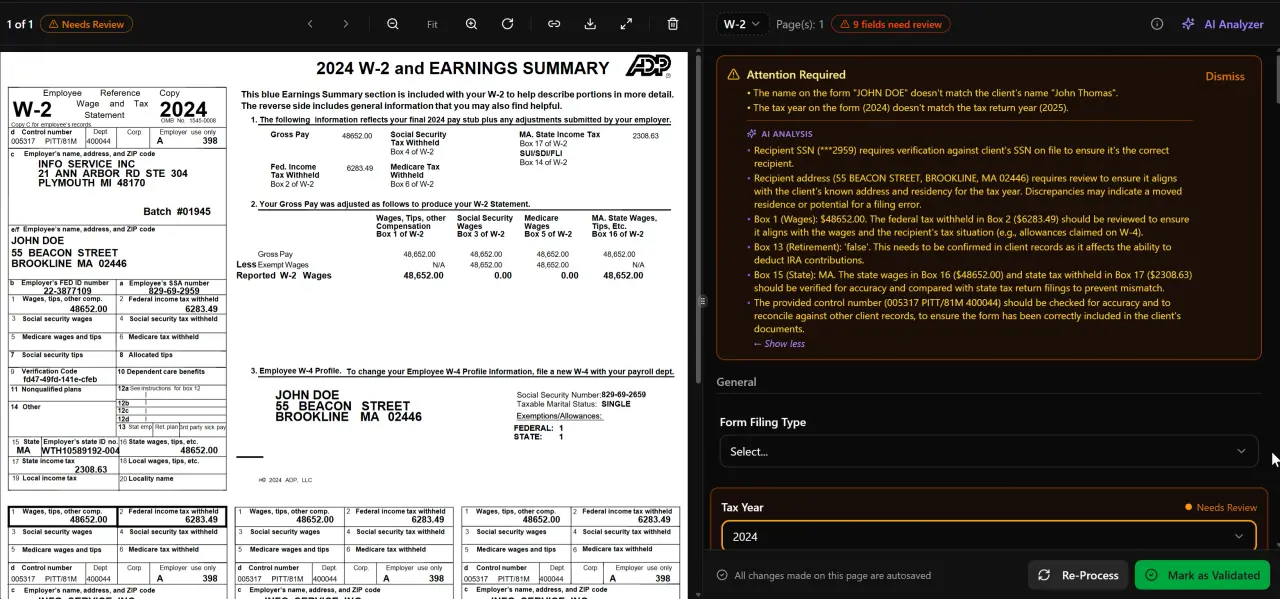
AI classifies, extracts, and validates every document automatically
Step 1: Audit and Export All QuickBooks Data Before Any Changes
Before touching a single setting, produce a full data inventory. In QuickBooks Online, navigate to Settings → Export Data and download the full company data package. This produces a JSON export covering customers, vendors, chart of accounts, transactions, and attachments. Separately, run a Trial Balance report and a Balance Sheet as of the prior month-end. These become your reconciliation benchmarks — you will compare against them after migration is complete. Understanding quickbooks online migration in this context is what separates firms that scale from those that stall.
Export the following reports and save them to a dated, read-only folder your team cannot accidentally overwrite: Trial Balance, Balance Sheet, Profit and Loss, A/R Aging Summary, A/P Aging Summary, Bank Reconciliation reports for all accounts, and a full Transaction List by Date for the current year. If the client has payroll, export payroll summaries separately through the payroll module — these data structures do not survive a standard QBO company export. This is precisely where a deliberate quickbooks online migration strategy pays off.
Document every third-party app connected to the QBO instance: payment processors, inventory tools, e-commerce feeds, time-tracking integrations. Each of these will require a reconnection step after migration. Missing one is the most common cause of silent data gaps that only surface at month-end close. Store this inventory in your file management system so it travels with the client record. Quickbooks online migration sits at the center of this decision — get it wrong and the rest unravels.
Tired of rebuilding client records after a botched migration?
TaxScout.ai gives CPA firms AI-assisted document extraction, a secure client portal, and pipeline management — so your team spends time on advisory work, not data cleanup. When firms revisit their quickbooks online migration priorities, the gaps usually surface here.
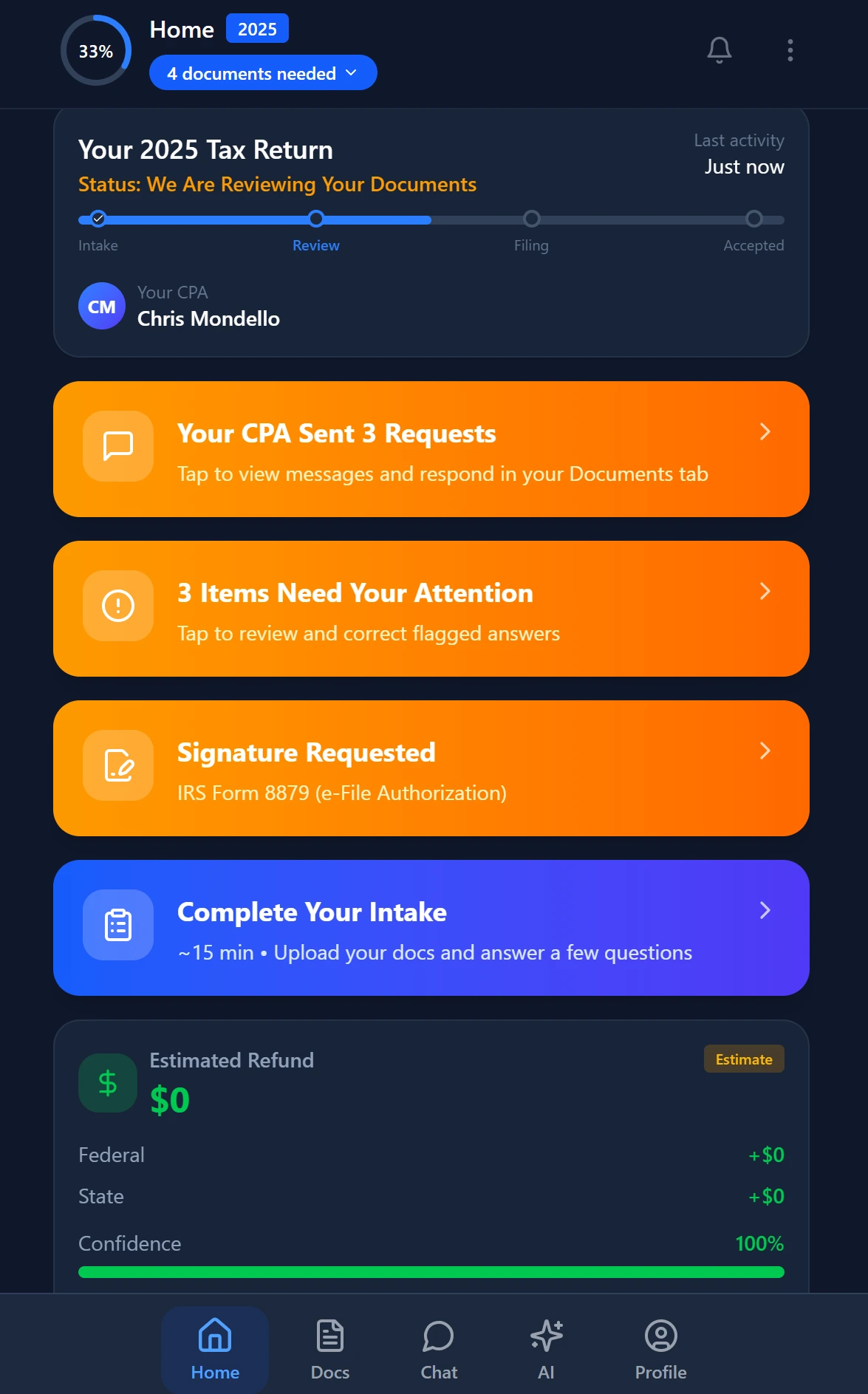
Smart intake auto-fills from uploaded documents and prior-year data
Step 2: Amend Engagement Letters Before Switching Client-Facing Platforms
This step is skipped by nearly every migration guide, and it is the one most likely to create a professional liability problem. When your engagement letter specifies that bookkeeping or accounting services will be delivered through a named platform, switching that platform mid-engagement is a material change in service delivery. The prudent approach is a brief engagement letter amendment — one page — that identifies the old platform, the new platform, the migration date, and confirms the client's consent to the transition.
The amendment should also address data access continuity: confirm the client retains the ability to export their own historical data from the old system for a defined period (typically 90 days) and that you will maintain read-only access to prior records. For firms using e-signatures to execute engagement documents, this amendment can be sent and signed entirely digitally through tools that support Form 8879 and general engagement letter workflows — reducing the amendment to a two-minute client task.
From a state CPA society compliance standpoint, many state boards require that engagement modifications be documented when the scope of services changes materially. Check your state's guidance — for example, the AICPA Code of Professional Conduct Section 1.700 provides the baseline, and state overlays add requirements. Skipping this step does not save time; it transfers risk forward to the next audit or dispute.

Click any extracted field to see its source highlighted on the original PDF
Step 3: Set Up the Destination System and Validate Chart of Accounts
Before importing any transaction data, build the destination chart of accounts and validate that every account number, account type, and tax line mapping matches the source export exactly. Even a single account type mismatch — for example, mapping an Other Current Liability as a Long-Term Liability — will silently corrupt the Balance Sheet without triggering an import error.
If you are migrating to QuickBooks Online from a desktop version, use Intuit's own QuickBooks Desktop Migration Tool for Windows-based files. If you are migrating from QBO to a different platform, most practice management and accounting platforms accept a QBO general ledger import in either IIF format or CSV. Regardless of direction, never import directly into a live production file — always test the import in a sandbox or trial environment first.
Pay particular attention to depreciation schedules and fixed asset registers. These are almost never included in standard chart-of-accounts exports and must be manually re-entered or imported from a separate fixed asset management tool. Firms that miss this step discover the problem when Section 179 deductions or cost basis calculations fail to reconcile at year-end.

Your clients see your brand — OTP login, document upload, and real-time status
Step 4: Run a Parallel Period Before Full Cutover
A parallel-run period means both systems are maintained simultaneously for a defined window — typically 30 to 60 days — so you can compare outputs and catch discrepancies before the old system goes dark. For CPA firms migrating QuickBooks Online mid-year, we recommend a minimum 30-day parallel run if the migration happens outside of a peak filing period, and a 60-day run if it overlaps with estimated quarterly deadlines or any IRS deadlines your team is tracking.
During the parallel period, every new transaction is posted in both systems. At the end of each week, run matching Trial Balance exports from both and compare them line by line. Any variance greater than $0.01 requires immediate investigation — do not let variances accumulate on the assumption they will wash out. The most common parallel-run variances come from: opening balance adjustments that post to the wrong period, sales tax liability timing differences, and unapplied credits that the destination system treats as income.
Document the results of each weekly comparison in a migration log. If you are running a workflow automation system in your firm, create a recurring checklist task for the parallel-run comparison so it cannot be skipped during busy weeks. This log also serves as evidence of due diligence if a client later disputes the accuracy of their migrated records.
The question CPAs ask most often is: how long is long enough? The answer depends on transaction volume and complexity. A single-entity client with straightforward revenue and a clean chart of accounts can often clear a 30-day parallel run without issues. A multi-entity client with intercompany eliminations, pass-through entity allocations, or payroll processed through QBO should run parallel for the full 60 days regardless of how clean the initial import looks.
Step 5: Use AI-Assisted Reconciliation to Validate Migrated Balances
Manual line-by-line comparison works, but it is slow and human-error-prone at scale. Firms that have adopted AI-native document and data processing can accelerate the validation step significantly. The approach is straightforward: feed the pre-migration Trial Balance export and the post-migration Trial Balance export into an AI extraction and comparison workflow that flags any account where the ending balance differs by more than a defined threshold.
TaxScout.ai's AI document extraction engine — which processes 180+ document types through a 5-layer validation pipeline — can ingest structured financial exports and cross-verify figures against source documents. The system applies 15 deterministic math rules and 18 post-extraction rules, surfacing discrepancies with source citations so your team knows exactly which transaction or account is out of balance. This is the same validation infrastructure described in our technical guide to AI document extraction for CPAs.
Beyond balance validation, AI-assisted reconciliation catches document-level issues that pure ledger comparison misses: a vendor 1099 that was attached in the old system but lost during migration, a K-1 upload that references an entity structure that did not transfer, or a scanned receipt that was filed under the wrong transaction. Running AI document extraction against both the pre- and post-migration document sets surfaces these gaps before they become tax filing problems.
Firms that skip this step and rely solely on the destination platform's import summary are trusting vendor-generated confirmation of vendor-generated imports — a circular validation that has produced costly surprises during IRS examinations.
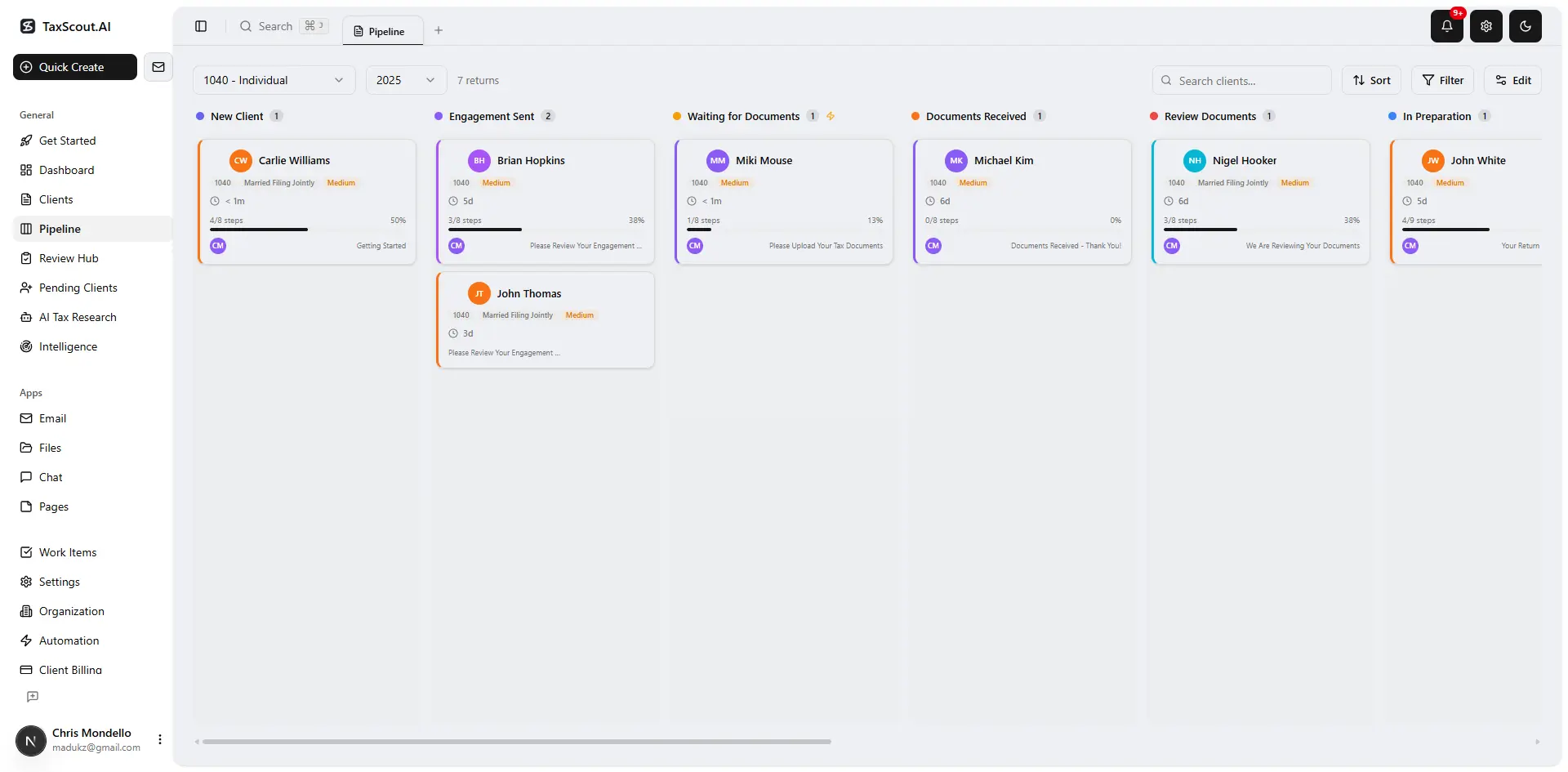
Track every return from intake to filed with drag-and-drop pipeline management
QuickBooks Online Migration Checklist: Key Steps and Risk Level
| Step | Action Required | Risk if Skipped | Timing |
|---|---|---|---|
| 1. Pre-migration audit | Export Trial Balance, A/R, A/P, payroll summaries, app inventory | Silent data gaps, missing open items | Before any changes |
| 2. Engagement letter amendment | Document platform switch, client consent, data access terms | Professional liability, state board compliance issue | Before client notification |
| 3. Chart of accounts validation | Match account types, tax lines, and numbering in destination system | Balance Sheet corruption, deferred tax errors | Before importing any transactions |
| 4. Sandbox test import | Import into trial environment first, never directly into production | Unrecoverable overwrite of live data | Before parallel run begins |
| 5. Parallel-run period | Maintain both systems for 30-60 days, weekly Trial Balance comparison | Undetected variances compounding to year-end | 30 days min, 60 for complex entities |
| 6. AI-assisted reconciliation | Cross-validate pre/post migration balances and document sets with AI | Missing documents, undetected calculation errors | End of parallel period |
| 7. Third-party reconnection | Reconnect all integrations and verify data flow in destination system | Silent transaction gaps from disconnected feeds | Before cutover |
| 8. Cutover and archive | Set old system to read-only, confirm 90-day client access, document migration log | Regulatory recordkeeping failure, dispute exposure | After reconciliation clears |
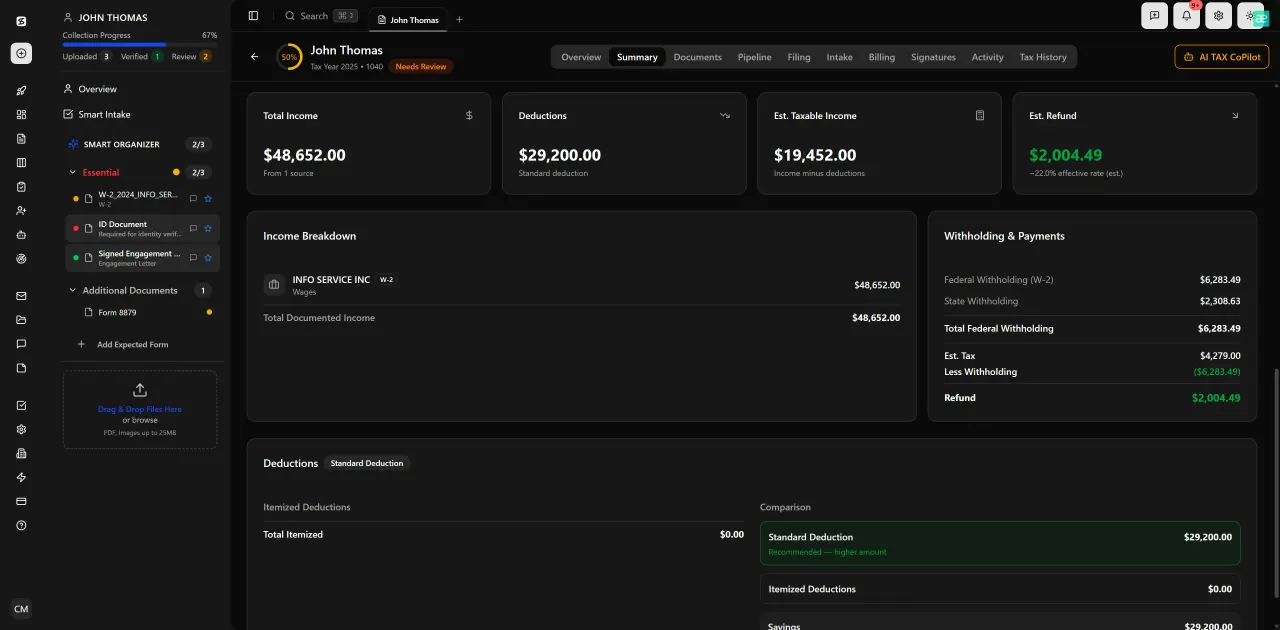
Review with AI assist — 9 agents answer questions with full client context
Step 6: Communicate the Migration to Clients Clearly and Early
Client communication about a QuickBooks Online migration should happen in three phases: advance notice (at least 30 days before cutover), pre-cutover confirmation (one week before), and post-cutover verification (within 48 hours after). Each communication should be brief, specific, and include a clear action item for the client if one exists.
The advance notice should explain what is changing, what is not changing, what the client needs to do (if anything), and how to access their historical data during and after the transition. Most clients do not care which system holds their books — they care about continuity of access and the assurance that nothing will be lost. Frame the migration around those two points.
Firms with a structured client portal can use it to deliver migration notices, collect the signed engagement letter amendment, and give clients a single place to download their historical reports during the transition window. This eliminates the email-thread chaos that typically surrounds a migration and creates a documented record of every client interaction. For a deeper look at building a portal clients actually engage with, see our guide on creating a client portal accounting clients will actually use.
Do not overlook internal communication. Staff need to know which system is authoritative at every point in the parallel-run period, who approves exceptions when the two systems show different balances, and what the escalation path looks like if a material discrepancy is found. A one-page internal migration protocol, distributed via your team communication hub, prevents the most common staff error: posting transactions in the wrong system during the overlap window.
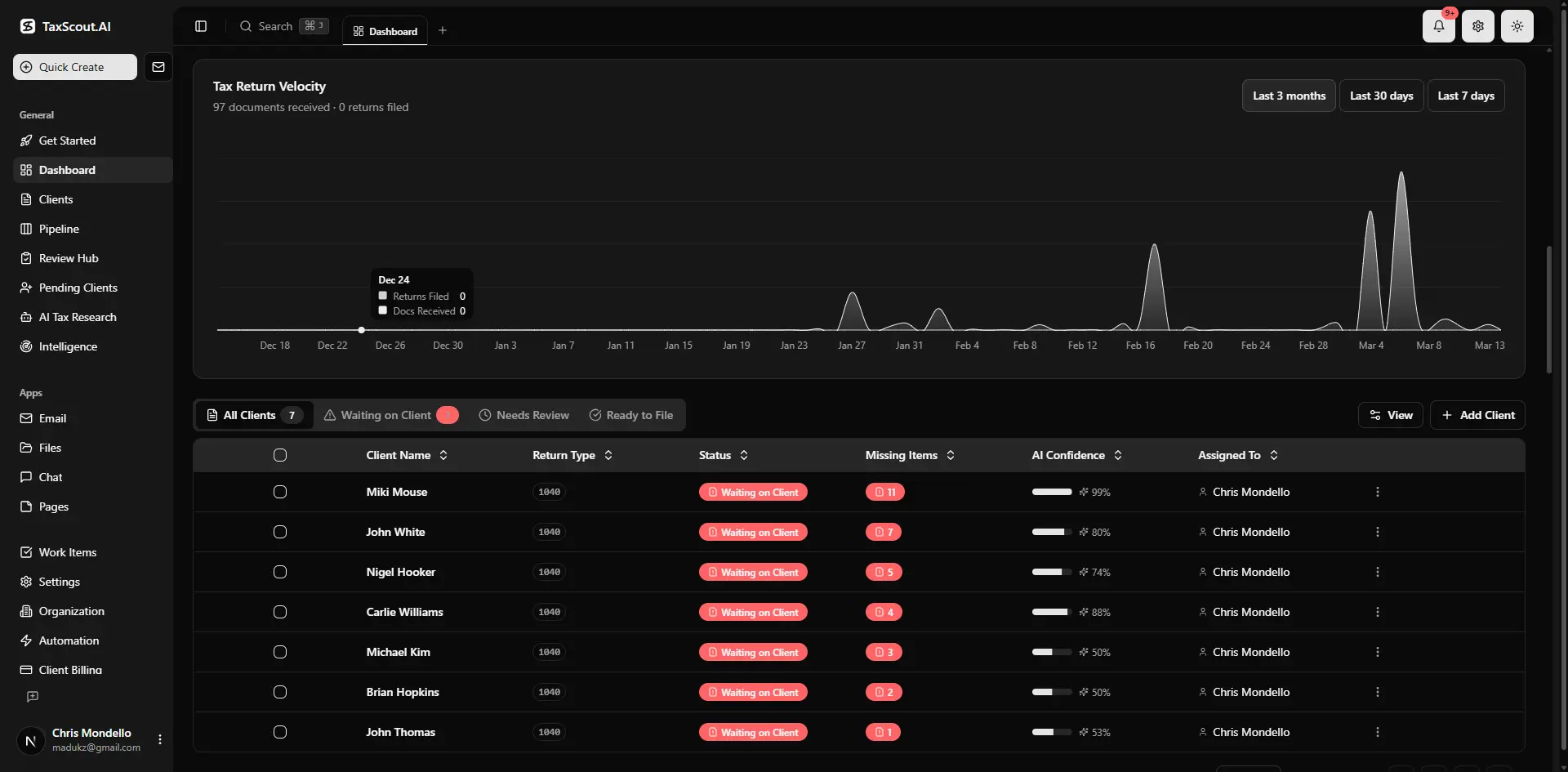
Real-time dashboard showing returns in progress, revenue, and upcoming deadlines
Step 7: Post-Cutover Monitoring and Recordkeeping Requirements
The migration is not complete at cutover — it is complete when 90 days of post-migration transaction activity has been reviewed and no material variances remain open. During that 90-day window, maintain read-only access to the old QBO environment. The IRS generally requires business records to be retained for a minimum of three years from the filing date, and the old system's data falls within that obligation.
Set up a monthly reconciliation check for the first six months post-migration. Specifically, compare the prior-month-end balances from the new system against the archived Trial Balance exports from the old system. If you have AI research agents available in your practice management platform, you can automate the flagging logic — any account where the cumulative variance exceeds a materiality threshold generates a task for review.
For firms that have migrated multiple clients simultaneously, a pipeline management board with a dedicated migration stage is the most reliable way to ensure no client falls through the cracks. Assign each client a post-migration status (parallel-run active, reconciliation in progress, cleared) and set deadline reminders for the 30-day and 60-day checkpoints. This is the same discipline that applies to effective CPA firm workflow automation — the system enforces the process so individuals do not have to remember every step under deadline pressure.
Finally, document the completed migration in the client's permanent file. Include the migration date, the pre- and post-migration Trial Balance comparison, the reconciliation sign-off, and the engagement letter amendment. This package is your defense if the migration is ever questioned in an audit, a client dispute, or a peer review. Firms that treat migrations as administrative events rather than engagement milestones are the ones that spend hours reconstructing documentation they should have created automatically.
How TaxScout.ai Supports Accounting Software Migration for CPA Firms
TaxScout.ai is not an accounting general ledger — it is the practice management and AI infrastructure layer that sits on top of your accounting software stack. That means it works alongside QuickBooks Online, Drake, CCH Axcess, UltraTax, Lacerte, ProConnect, and ProSeries rather than replacing them. During a migration, that distinction matters: your team can continue using TaxScout.ai for client onboarding, document collection, AI extraction, and pipeline management without any interruption regardless of which accounting platform is in transition.
The AI document extraction capability — which processes 180+ form types through a 5-layer validation pipeline including OCR cross-verification and 15 deterministic math rules — gives migrating firms a way to validate financial documents against migrated ledger data automatically. Instead of manually tracing each balance, the system surfaces discrepancies with source citations so staff can resolve the specific transaction rather than hunting through thousands of line items.
For firms evaluating a broader practice management switch alongside or instead of a QuickBooks migration, TaxScout.ai's Prep Pro plan covers unlimited clients at $149 per month flat — no per-user fees, no per-client charges for intake. A 10-person firm using TaxDome pays approximately $500 per month for comparable seat count; on Canopy, the same firm pays approximately $660 per month with smart intake billed at $11 per client on top. You can review the full breakdown at our TaxDome alternative comparison or the Canopy alternative page.
Ready to run your next migration without the data gaps and documentation scramble?
TaxScout.ai gives your firm AI-assisted reconciliation, a structured client portal, and pipeline management at a flat rate — so every migration stays auditable and every client record stays intact.

Track firm performance with real-time analytics and client activity monitoring
Frequently Asked Questions
Most CPA firms should maintain a parallel-run period of at least 30 days for straightforward single-entity clients and 60 days for clients with multi-entity structures, intercompany transactions, payroll, or pass-through entity allocations. The parallel period ends only after weekly Trial Balance comparisons show zero material variances for at least two consecutive reporting cycles.
Keep reading
Amended FBAR Procedures: How CPAs Correct Foreign Account Errors Without Triggering Penalties
Oct 12, 2026 · 1 min read
Transparency in Coverage Final Rules: What CPA Firms Must Do Now
Oct 12, 2026 · 1 min read
Backdoor Roth IRA: How CPAs Execute the Strategy for High-Income Clients
Oct 12, 2026 · 1 min read
Stay up to date
Get the latest tax tech insights delivered to your inbox.